
Les pièces de théâtre sont disponibles dans la langue que vous lisez. Touchez n'importe quel paragraphe pour commencer.
La configuration d'un serveur cloud Kamatera est simple et rapide. De la création d'un compte à un serveur en cours d'exécution, cela prend environ 5 minutes. The dashboard is straightforward. The pricing calculator is transparent. The 60-second deployment is real — I timed it.
This step-by-step guide walks you through every click, every field, and every decision. By the end, you will have a fully functional cloud server running your choice of operating system. Whether you are a developer deploying an app or a business owner setting up a website, this guide covers everything you need.
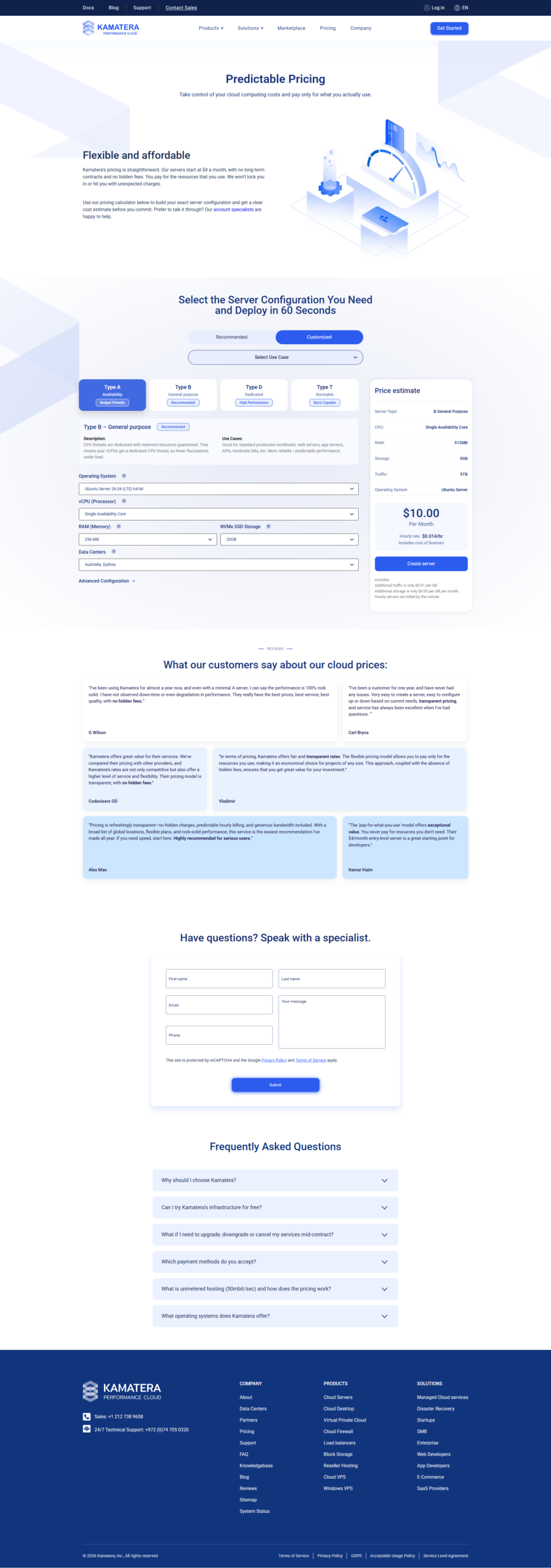
Vous débutez avec les serveurs cloud ? Ne t'inquiète pas. Je te tiendrai la main à chaque étape.
J'ai installé des dizaines de serveurs sur Kamatera. Le processus est le même à chaque fois. Cohérent, rapide et prévisible.
Suivez ces étapes et vous aurez un serveur cloud fonctionnel en moins de 10 minutes.
Étape 1 : Créez votre compte Kamatera
Allez sur le site Web de Kamatera et cliquez sur le Commencez par l'essai gratuit de Kamatera pour tester votre configuration bouton. Vous devrez fournir :
- Adresse e-mail — Utilisez votre véritable adresse e-mail. Vous devrez le vérifier.
- Mot de passe — Créez un mot de passe fort pour votre compte.
- Carte de crédit — Pour la vérification d'identité. Vous ne serez pas facturé pendant l’essai de 30 jours si vous restez dans la limite de crédit de 100 $.
- Détails de base — Nom, pays, numéro de téléphone.
Une fois que vous avez soumis, vérifiez votre courrier électronique pour le lien de vérification. Cliquez dessus et vous y êtes.
Important : The credit card requirement makes people nervous. I get it. Here is the truth — Kamatera uses the card to verify your identity, not to bill you.
Set a phone reminder for day 27 of your trial. If you want to cancel, log in, terminate your server, and no charges will apply. Simple.
Étape 2 : ouvrez le générateur de serveur
Après vous être connecté, vous atterrissez sur le tableau de bord Kamatera. Recherchez le bouton « Créer un serveur ». Il est placé bien en vue. Cliquez dessus.
Le générateur de serveur s'ouvre. Vous verrez deux onglets en haut :
- Recommandé — Configurations prédéfinies (Basic, Standard, Pro)
- Personnalisé — Construisez votre serveur à partir de zéro
Pour ce guide, je recommande de commencer par Personnalisé. Cela vous donne un contrôle total sur chaque composant.
Étape 3 : Choisissez le nom et la description de votre serveur
Donnez un nom à votre serveur. Quelque chose de descriptif comme « mon-serveur-web » ou « production-app-01 ». Cela vous aide à identifier les serveurs lorsque plusieurs instances sont en cours d'exécution.
La description est facultative mais utile. Ajoutez des notes sur ce que fait le serveur ou sur le projet auquel il appartient.
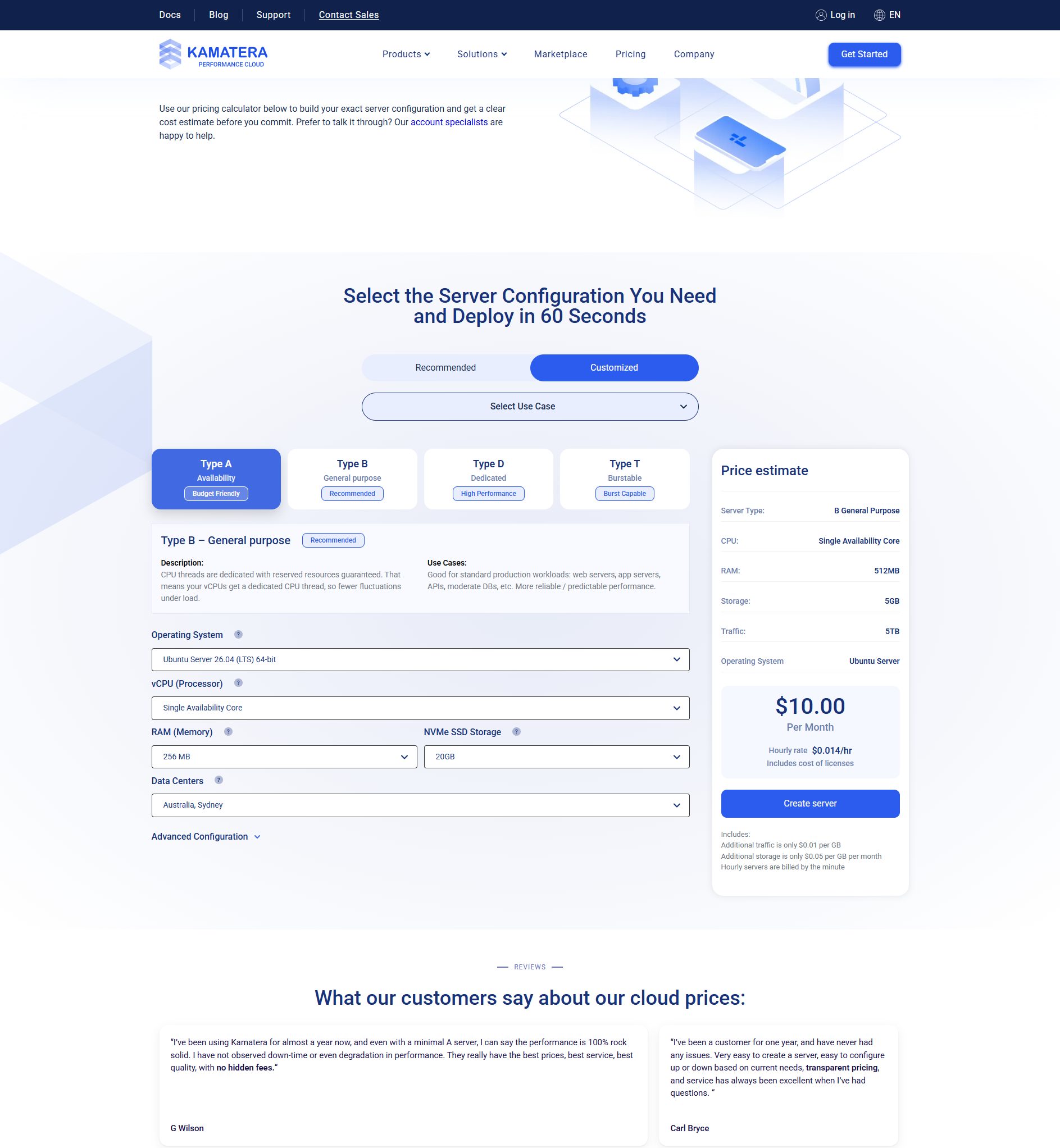
Étape 4 : Sélectionnez la configuration de votre processeur
C'est l'étape la plus importante. Choisissez votre type de CPU et le nombre de vCPU.
| Champ | Options | Recommandation |
|---|---|---|
| Type de processeur | Type A (disponibilité), Type B (usage général), Type D (dédié) | Type B pour la production |
| Processeurs virtuels | 1 à 32+ | Commencez par 2 pour la plupart des cas d'utilisation |
Pour un débutant qui configure un site Web ou une application Web, choisissez le type B avec 2 processeurs virtuels. Cela gère confortablement la plupart des charges de travail.
Étape 5 : Choisissez votre RAM
Les options de RAM vont de 1 Go à plus de 256 Go. Plus de RAM signifie que votre serveur peut gérer davantage de tâches simultanées.
| Cas d'utilisation | RAM recommandée |
|---|---|
| Site Web ou blog simple | 1-2 Go |
| Site Internet professionnel avec CMS | 2-4 Go |
| Application Web | 4-8 Go |
| Serveur de base de données | 4 Go+ |
Commencez avec 2 Go ou 4 Go. Vous pourrez toujours en ajouter d’autres plus tard. Kamatera facilite le redimensionnement.
Étape 6 : Sélectionnez votre stockage
Tout le stockage Kamatera est un SSD NVMe. Il s'agit d'un stockage rapide, environ 10 fois plus rapide que les disques durs traditionnels.
Choisissez la quantité de stockage dont vous avez besoin. Commencez avec 20 à 40 Go si vous configurez un serveur de base. Vous pouvez ajouter plus de stockage plus tard sans temps d'arrêt.
Kamatera propose un stockage en bloc cloud qui peut être étendu à la volée. Ceci est utile si vous manquez d’espace et que vous en avez besoin immédiatement.
Étape 7 : Choisissez votre système d'exploitation
Kamatera prend en charge une large gamme de systèmes d'exploitation. Choisissez celui avec lequel vous êtes le plus à l'aise.
| Système d'exploitation | Idéal pour | Coût |
|---|---|---|
| Ubuntu 22.04 / 24.04 LTS | La plupart des utilisateurs : un excellent choix complet | Gratuit |
| Debbian12 | Serveurs axés sur la stabilité | Gratuit |
| CentOS/AlmaLinux | Environnements d'entreprise | Gratuit |
| Windows Serveur 2022 | Applications .NET, logiciels spécifiques à Windows | 15-25$/mois supplémentaires |
| GratuitBSD | Mise en réseau et sécurité avancées | Gratuit |
Si vous n'êtes pas sûr, choisissez Ubuntu 24.04 LTS. Il s'agit de la distribution Linux la plus populaire pour les serveurs cloud. Des tonnes de tutoriels. Grand soutien de la communauté.
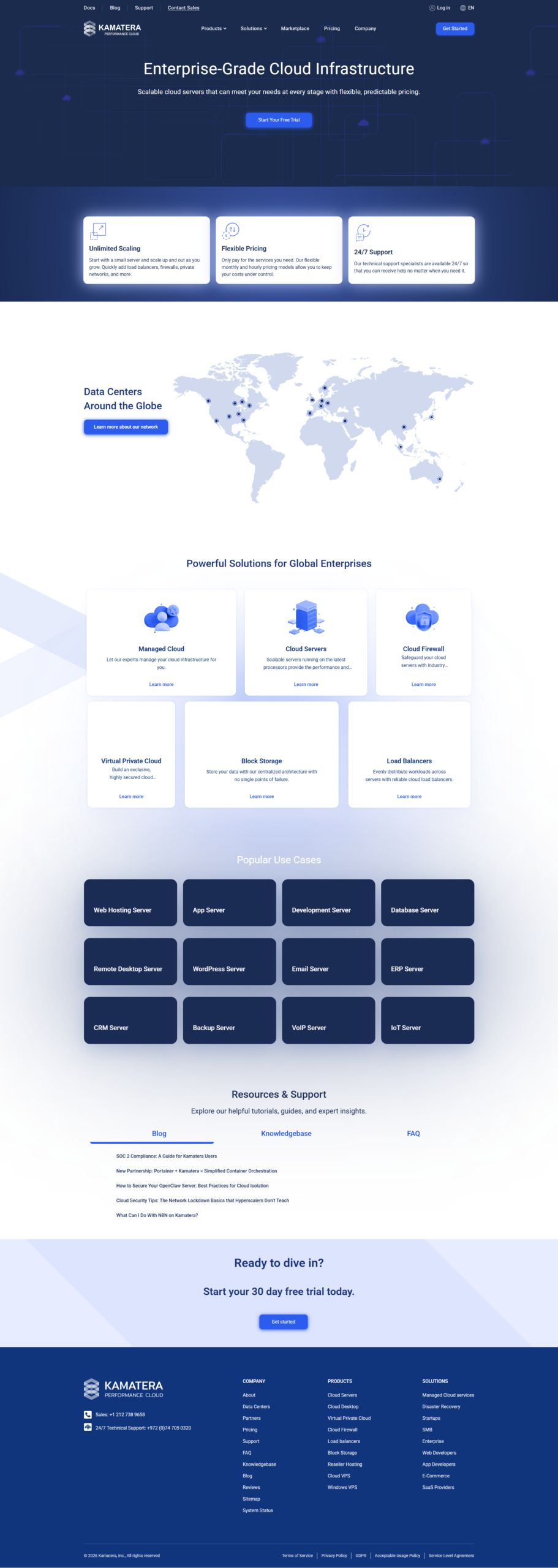
Étape 8 : Sélectionnez un emplacement de centre de données
Choisissez le centre de données le plus proche de votre public cible. Cela réduit la latence et améliore les vitesses de chargement des pages.
Kamatera dispose de 14 centres de données dans le monde :
- Amérique du Nord : New York, Dallas, Los Angeles, Chicago, Toronto, Montréal
- Europe : Londres, Amsterdam, Francfort, Stockholm
- Asie : Hong Kong, Singapour, Tel-Aviv
Si votre public est mondial, choisissez un emplacement central comme New York ou Amsterdam.
Prêt à configurer votre serveur ?
Obtenez 100 $ de crédit gratuit pendant 30 jours. Suivez ce guide pour déployer votre premier serveur cloud en quelques minutes – entièrement gratuit et sans risque.
Étape 9 : Configurer le réseau
Kamatera attribue automatiquement une adresse IP publique à votre serveur. Vous pouvez également configurer :
- Réseau privé (VLAN) — Pour connecter plusieurs serveurs en toute sécurité
- Règles de pare-feu — Contrôlez quel trafic peut atteindre votre serveur
- Paramètres DNS — Configuration DNS personnalisée en option
Pour une configuration de base, les valeurs par défaut fonctionnent correctement. Vous pourrez toujours ajuster la mise en réseau plus tard.
Étape 10 : Examen et déploiement
Avant le déploiement, vérifiez votre configuration. Vérifiez :
- Nom du serveur
- Type et nombre de processeurs
- Quantité de RAM
- Taille de stockage
- Système d'exploitation
- Centre de données
- Coût mensuel (si vous ne bénéficiez pas de l'essai gratuit)
Si tout semble bon, cliquez sur « Créer un serveur ». Kamatera déploie votre serveur en 60 secondes environ.
Vous recevrez un e-mail avec l’adresse IP de votre serveur et le mot de passe root/admin. Conservez-les dans un endroit sûr.
Étape 11 : Connectez-vous à votre serveur
Maintenant, votre serveur est en cours d'exécution. Il est temps de se connecter.
Pour les serveurs Linux :
- Ouvrez un terminal sur votre ordinateur
- Tapez :
ssh root@votre-serveur-ip - Entrez le mot de passe root de l'e-mail
- Vous y êtes ! Vous disposez désormais d’un accès complet à la ligne de commande.
Pour les serveurs Windows :
- Ouvrez la connexion Bureau à distance sur votre ordinateur
- Entrez l'adresse IP de votre serveur
- Entrez les informations d'identification de l'administrateur contenues dans l'e-mail
- Vous êtes connecté à votre serveur Windows.
Conseil de sécurité : Après la première connexion, modifiez immédiatement votre mot de passe root/administrateur. Pensez également à configurer l'authentification par clé SSH pour un accès plus sécurisé. Cela empêche les attaques de mots de passe par force brute.

Liste de contrôle post-installation
Une fois votre serveur exécuté, effectuez ces tâches essentielles.
- Mettez à jour votre système — Courir
apt update && apt upgrade -ysur Ubuntu/Debian. Cela installe les derniers correctifs de sécurité. - Configurer un pare-feu — Utilisez UFW (Ubuntu) ou firewalld (CentOS) pour autoriser uniquement les ports nécessaires (22 pour SSH, 80 pour HTTP, 443 pour HTTPS).
- Installer un serveur web — Nginx ou Apache. La plupart des sites Web et des applications en ont besoin.
- Installer SSL — Utilisez Certbot pour obtenir des certificats SSL gratuits de Let's Encrypt.
- Configurer la surveillance — Outils de surveillance de base comme htop, netstat et fail2ban.
- Configurer les mises à jour automatiques — Les mises à niveau sans surveillance sur Ubuntu maintiennent automatiquement les correctifs de votre serveur.
Configurations de serveur courantes
Voici des configurations typiques pour des cas d’utilisation courants.
| Cas d'utilisation | Configuration | Système d'exploitation | Logiciel |
|---|---|---|---|
| Blog personnel | 1 processeur virtuel / 1 Go / 20 Go | Ubuntu 24.04 | WordPress + Nginx |
| Site Web d'entreprise | 2 processeurs virtuels / 2 Go / 30 Go | Ubuntu 24.04 | WordPress + Nginx + SSL |
| Application Web | 2 processeurs virtuels / 4 Go / 40 Go | Ubuntu 24.04 | Node.js + Nginx + MongoDB |
| Boutique de commerce électronique | 2 processeurs virtuels / 4 Go / 50 Go | Ubuntu 24.04 | WooCommerce + Nginx + Redis |
| Serveur de développement | 1 processeur virtuel / 2 Go / 30 Go | Ubuntu 24.04 | Docker + GitLab Runner |
Dépannage des problèmes courants
| Problème | Solution |
|---|---|
| Impossible de se connecter via SSH | Vérifiez que le port 22 est ouvert dans le pare-feu. Vérifiez l'adresse IP. Assurez-vous que le serveur est en cours d'exécution. |
| Le serveur est lent | Vérifiez l'utilisation du processeur et de la RAM avec haut ou htop. Envisagez une mise à niveau si l'utilisation est constamment élevée. |
| Le site Web ne se charge pas | Vérifiez que les ports 80 et 443 sont ouverts. Vérifiez que Nginx/Apache est en cours d'exécution. Vérifiez les paramètres DNS. |
| Espace disque insuffisant | Ajoutez plus de stockage via le tableau de bord Kamatera. Aucun redémarrage requis avec le stockage en bloc cloud. |
FAQ sur la configuration étape par étape
Combien de temps faut-il pour configurer un serveur Kamatera ?
Puis-je modifier la configuration de mon serveur après l'installation ?
Dois-je connaître Linux pour utiliser Kamatera ?
Comment installer WordPress sur mon serveur Kamatera ?
Que faire si je rencontre des problèmes lors de l'installation ?
🔗
Lectures complémentaires :
Réflexions finales
Lectures complémentaires :
La configuration d'un serveur cloud Kamatera est simple. Le processus est conçu pour vous faire passer de zéro à un fonctionnement en quelques minutes, et non en quelques heures. Le calculateur de prix affiche les coûts exacts à l’avance. Le déploiement est rapide. L'équipe d'assistance est disponible si vous avez besoin d'aide.
L'essai gratuit avec un crédit de 100 $ signifie que vous pouvez expérimenter sans risque. Essayez différentes configurations. Testez différents systèmes d'exploitation. Apprenez à votre rythme.
Une fois que vous avez configuré votre premier serveur, tout le reste devient plus facile. Vous déployerez de nouveaux serveurs pendant votre sommeil.
Configurez votre premier serveur cloud gratuitement
Obtenez 100 $ de crédit gratuit pendant 30 jours. Suivez ce guide et faites fonctionner votre serveur en quelques minutes. Aucun risque. Aucun engagement. Juste une véritable infrastructure cloud à expérimenter.

- Open Rate Benchmarks After Privacy Changes - octobre 9, 2026
- Email Marketing ROI: Separating Claim From Evidence - octobre 6, 2026
- Free AI Tools for YouTube: The Stack That Costs Nothing - octobre 6, 2026