
I brani sono nella lingua che stai leggendo. Tocca un paragrafo qualsiasi per iniziare da lì.
Configurare un server cloud Kamatera è semplice e veloce. Ci vuole circa dalla creazione dell'account a un server in esecuzione 5 minuti. The dashboard is straightforward. The pricing calculator is transparent. The 60-second deployment is real — I timed it.
This step-by-step guide walks you through every click, every field, and every decision. By the end, you will have a fully functional cloud server running your choice of operating system. Whether you are a developer deploying an app or a business owner setting up a website, this guide covers everything you need.
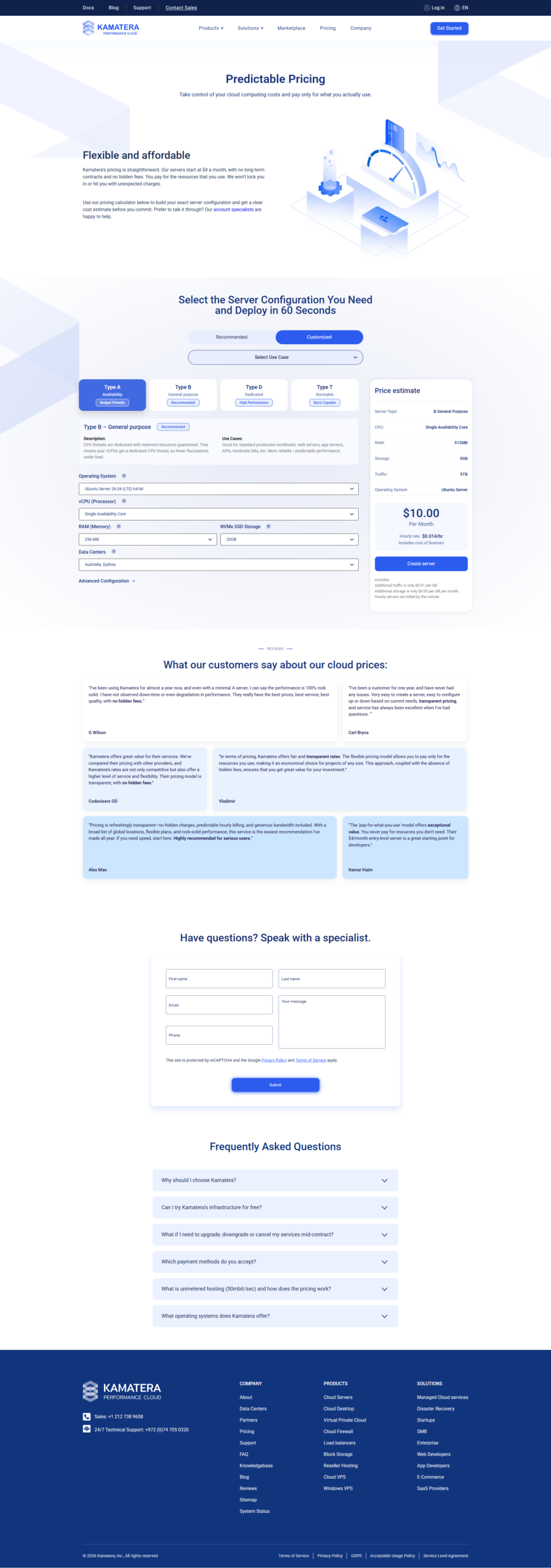
Nuovo ai server cloud? Non preoccuparti. Ti terrò la mano durante ogni passo.
Ho installato dozzine di server su Kamatera. Il processo è lo stesso ogni volta. Coerente, veloce e prevedibile.
Segui questi passaggi e avrai un server cloud funzionante in meno di 10 minuti.
Passaggio 1: registrati per il tuo account Kamatera
Vai al sito web di Kamatera e fai clic su Inizia con la prova gratuita di Kamatera per testare la tua configurazione pulsante. Dovrai fornire:
- Indirizzo e-mail — Usa la tua vera email. Dovrai verificarlo.
- Parola d'ordine — Crea una password complessa per il tuo account.
- Carta di credito — Per la verifica dell'identità. Non ti verrà addebitato alcun importo durante il periodo di prova di 30 giorni se rimani entro il limite di credito di $ 100.
- Dettagli di base — Nome, paese, numero di telefono.
Una volta inviato, controlla la tua email per il collegamento di verifica. Cliccalo e sei dentro.
Importante: The credit card requirement makes people nervous. I get it. Here is the truth — Kamatera uses the card to verify your identity, not to bill you.
Set a phone reminder for day 27 of your trial. If you want to cancel, log in, terminate your server, and no charges will apply. Simple.
Passaggio 2: aprire il generatore di server
Dopo aver effettuato l'accesso, atterri sulla dashboard di Kamatera. Cerca il pulsante "Crea server". È posizionato in modo ben visibile. Fare clic su di esso.
Si apre il generatore di server. Vedrai due schede in alto:
- Raccomandato — Configurazioni predefinite (Base, Standard, Pro)
- Personalizzato — Costruisci il tuo server da zero
Per questa guida ti consiglio di iniziare con Personalizzato. Questo ti dà il pieno controllo su ogni componente.
Passaggio 3: scegli il nome e la descrizione del tuo server
Dai un nome al tuo server. Qualcosa di descrittivo come "my-web-server" o "production-app-01". Ciò ti aiuta a identificare i server quando sono in esecuzione più istanze.
La descrizione è facoltativa ma utile. Aggiungi note su cosa fa il server o a quale progetto appartiene.
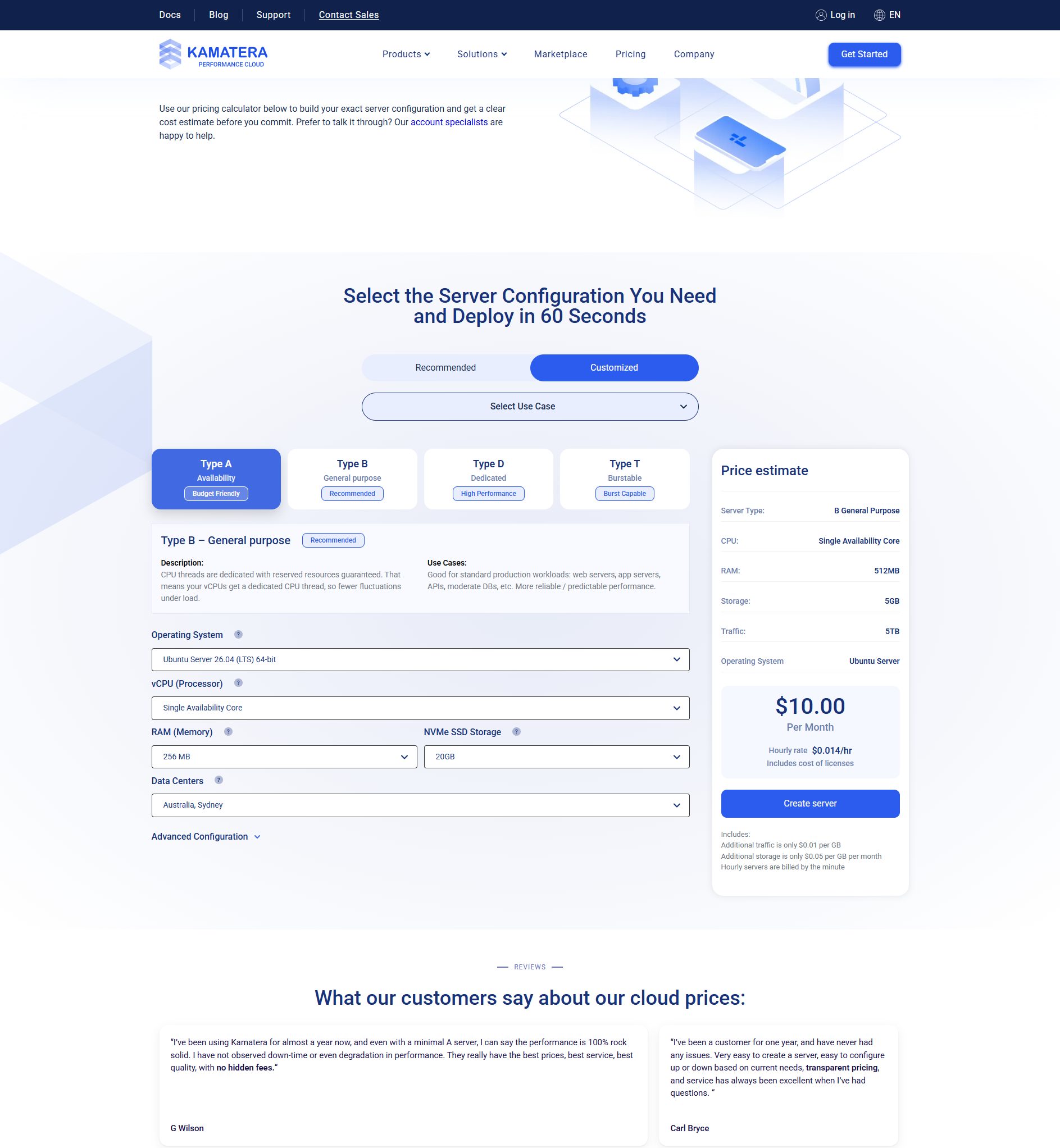
Passaggio 4: seleziona la configurazione della CPU
Questo è il passo più importante. Scegli il tipo di CPU e il numero di vCPU.
| Campo | Opzioni | Raccomandazione |
|---|---|---|
| Tipo di CPU | Tipo A (Disponibilità), Tipo B (Scopo generale), Tipo D (Dedicato) | Tipo B per la produzione |
| vCPU | da 1 a 32+ | Inizia con 2 per la maggior parte dei casi d'uso |
Per un principiante che configura un sito Web o un'app Web, scegli il tipo B con 2 vCPU. Ciò gestisce comodamente la maggior parte dei carichi di lavoro.
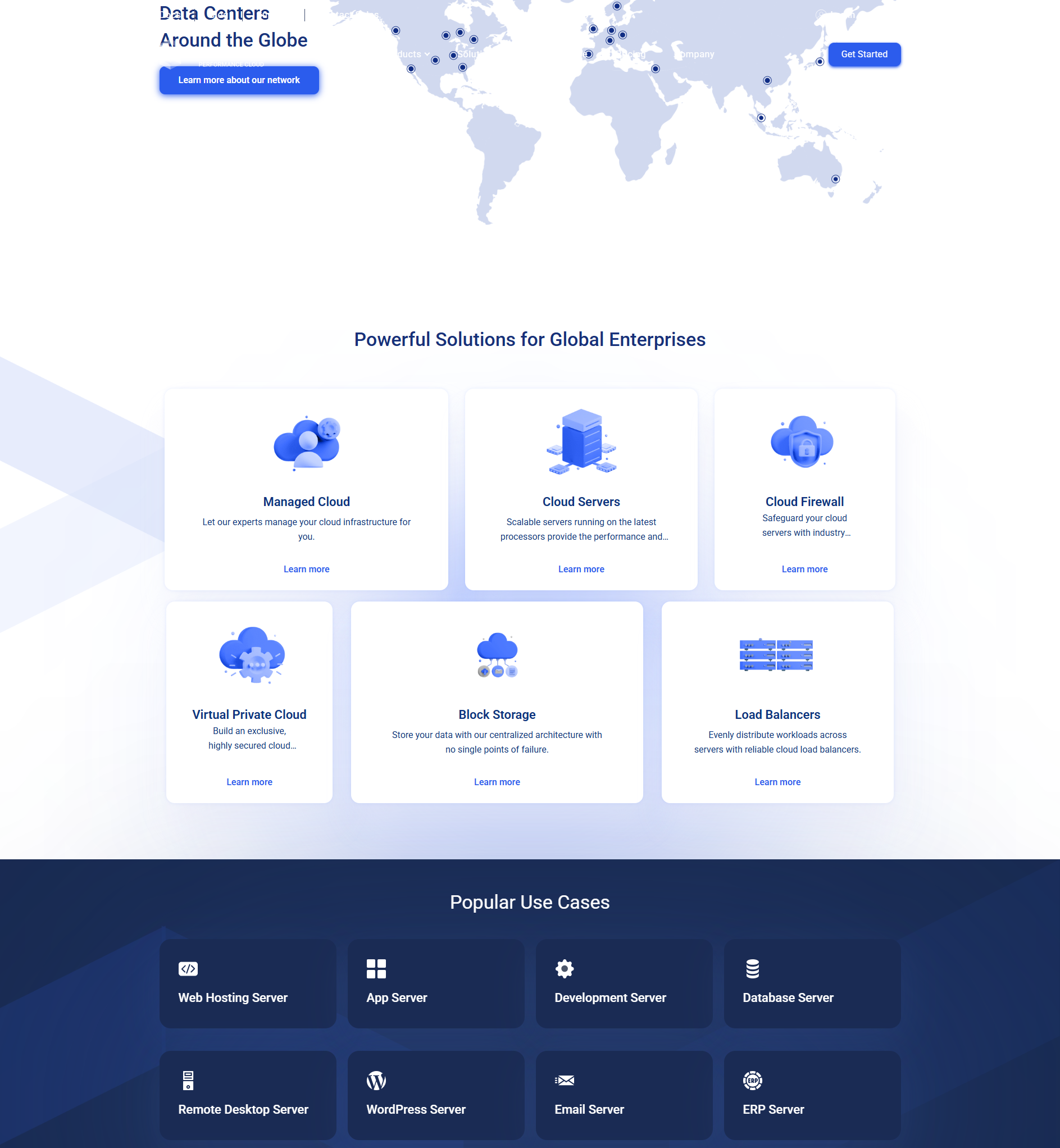
Passaggio 5: scegli la tua RAM
Le opzioni RAM vanno da 1 GB a oltre 256 GB. Più RAM significa che il tuo server può gestire più attività simultanee.
| Caso d'uso | RAM consigliata |
|---|---|
| Sito web o blog semplice | 1-2GB |
| Sito aziendale con CMS | 2-4GB |
| Applicazione Web | 4-8GB |
| Server della banca dati | 4GB+ |
Inizia con 2 GB o 4 GB. Puoi sempre aggiungerne altri in seguito. Kamatera semplifica il ridimensionamento.
Passaggio 6: seleziona il tuo spazio di archiviazione
Tutto lo storage Kamatera è un SSD NVMe. Si tratta di un'archiviazione veloce: circa 10 volte più veloce dei dischi rigidi tradizionali.
Scegli la quantità di spazio di archiviazione di cui hai bisogno. Inizia con 20-40 GB se stai configurando un server di base. Puoi aggiungere ulteriore spazio di archiviazione in un secondo momento senza tempi di inattività.
Kamatera offre spazio di archiviazione a blocchi nel cloud che può essere espanso al volo. Questo è utile se esaurisci lo spazio e ne hai bisogno di altro immediatamente.
Passaggio 7: scegli il tuo sistema operativo
Kamatera supporta un'ampia gamma di sistemi operativi. Scegli quello con cui ti senti più a tuo agio.
| sistema operativo | Ideale per | Cost |
|---|---|---|
| Ubuntu 22.04/24.04 LTS | La maggior parte degli utenti: un'ottima scelta a tutto tondo | Gratuito |
| Debian 12 | Server focalizzati sulla stabilità | Gratuito |
| CentOS/AlmaLinux | Ambienti aziendali | Gratuito |
| WindowsServer2022 | App .NET, software specifico per Windows | $ 15-25/mese in più |
| FreeBSD | Reti e sicurezza avanzate | Gratuito |
Se non sei sicuro, scegli Ubuntu 24.04 LTS. È la distribuzione Linux più popolare per i server cloud. Tonnellate di tutorial. Ottimo supporto comunitario.
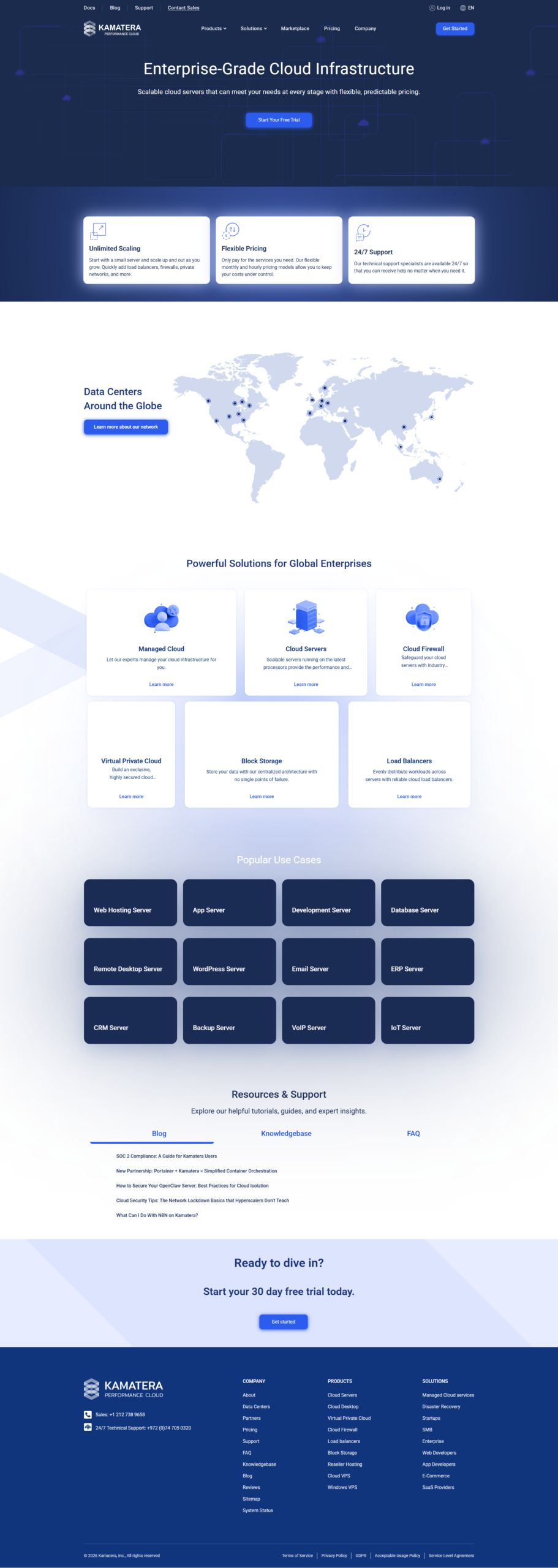
Passaggio 8: selezionare la posizione del data center
Scegli il data center più vicino al tuo pubblico di destinazione. Ciò riduce la latenza e migliora la velocità di caricamento della pagina.
Kamatera dispone di 14 data center in tutto il mondo:
- Nord America: New York, Dallas, Los Angeles, Chicago, Toronto, Montreal
- Europa: Londra, Amsterdam, Francoforte, Stoccolma
- Asia: Hong Kong, Singapore, Tel Aviv
Se il tuo pubblico è globale, scegli una posizione centrale come New York o Amsterdam.
Pronto per configurare il tuo server?
Ottieni $ 100 di credito gratuito per 30 giorni. Segui questa guida per implementare il tuo primo server cloud in pochi minuti: completamente gratuito, senza rischi.
Passaggio 9: configurare la rete
Kamatera assegna automaticamente un indirizzo IP pubblico al tuo server. Puoi anche configurare:
- Rete privata (VLAN) — Per connettere più server in modo sicuro
- Regole del firewall — Controlla quale traffico può raggiungere il tuo server
- Impostazioni DNS — Configurazione DNS personalizzata opzionale
Per una configurazione di base, le impostazioni predefinite funzionano correttamente. Puoi sempre modificare la rete in un secondo momento.
Passaggio 10: revisione e distribuzione
Prima della distribuzione, esamina la configurazione. Controlla:
- Nome del server
- Tipo e conteggio della CPU
- Quantità di RAM
- Dimensioni di archiviazione
- Sistema operativo
- Centro dati
- Costo mensile (se non sei in prova gratuita)
Se tutto sembra a posto, fai clic su "Crea server". Kamatera distribuisce il tuo server in circa 60 secondi.
Riceverai un'e-mail con l'indirizzo IP del tuo server e la password root/admin. Conservali in un posto sicuro.
Passaggio 11: Connettiti al tuo server
Ora il tuo server è in esecuzione. È ora di connettersi.
Per i server Linux:
- Apri un terminale sul tuo computer
- Tipo:
ssh root@ip-del-tuo-server - Inserisci la password di root dall'e-mail
- Ci sei! Ora hai accesso completo alla riga di comando.
Per i server Windows:
- Apri Connessione desktop remoto sul tuo computer
- Inserisci l'indirizzo IP del tuo server
- Inserisci le credenziali di amministratore dall'e-mail
- Sei connesso al tuo server Windows.
Suggerimento per la sicurezza: Dopo il primo accesso, modifica immediatamente la password di root/amministratore. Considera anche la possibilità di configurare l'autenticazione con chiave SSH per un accesso più sicuro. Ciò impedisce attacchi di password di forza bruta.

Elenco di controllo post-installazione
Una volta che il tuo server è in esecuzione, esegui queste attività essenziali.
- Aggiorna il tuo sistema — Corri
apt update && apt upgrade -ysu Ubuntu/Debian. Questo installa le patch di sicurezza più recenti. - Configura un firewall — Utilizzare UFW (Ubuntu) o firewalld (CentOS) per consentire solo le porte necessarie (22 per SSH, 80 per HTTP, 443 per HTTPS).
- Installa un server web — Nginx o Apache. La maggior parte dei siti Web e delle app ne hanno bisogno.
- Installa SSL — Utilizza Certbot per ottenere certificati SSL gratuiti da Let's Encrypt.
- Configura il monitoraggio — Strumenti di monitoraggio di base come htop, netstat e fail2ban.
- Configura gli aggiornamenti automatici — Gli aggiornamenti automatici su Ubuntu mantengono automaticamente le patch del tuo server.
Configurazioni server comuni
Di seguito sono riportate le configurazioni tipiche per i casi d'uso comuni.
| Caso d'uso | Configurazione | sistema operativo | Software |
|---|---|---|---|
| Blog personale | 1 CPU virtuale / 1 GB / 20 GB | Ubuntu 24.04 | WordPress + Nginx |
| Sito web aziendale | 2 vCPU / 2 GB / 30 GB | Ubuntu 24.04 | WordPress + Nginx + SSL |
| Applicazione Web | 2 vCPU / 4 GB / 40 GB | Ubuntu 24.04 | Node.js + Nginx + MongoDB |
| Negozio di e-commerce | 2 vCPU / 4 GB / 50 GB | Ubuntu 24.04 | WooCommerce + Nginx + Redis |
| Server di sviluppo | 1 CPU virtuale / 2 GB / 30 GB | Ubuntu 24.04 | Docker + GitLab Runner |
Risoluzione dei problemi comuni
| Problema | Soluzione |
|---|---|
| Impossibile connettersi tramite SSH | Verificare che la porta 22 sia aperta nel firewall. Verificare l'indirizzo IP. Assicurati che il server sia in esecuzione. |
| Il server è lento | Controlla l'utilizzo della CPU e della RAM con superiore O htop. Prendi in considerazione l'aggiornamento se l'utilizzo è costantemente elevato. |
| Il sito web non si carica | Verificare che le porte 80 e 443 siano aperte. Verifica che Nginx/Apache sia in esecuzione. Controlla le impostazioni DNS. |
| Spazio su disco esaurito | Aggiungi più spazio di archiviazione tramite la dashboard di Kamatera. Nessun riavvio richiesto con l'archiviazione a blocchi nel cloud. |
Domande frequenti sulla configurazione passo passo
Quanto tempo ci vuole per configurare un server Kamatera?
Posso modificare la configurazione del mio server dopo l'installazione?
Devo conoscere Linux per usare Kamatera?
Come installo WordPress sul mio server Kamatera?
Cosa succede se ho problemi durante la configurazione?
🔗
Letture correlate:
Considerazioni finali
Letture correlate:
La configurazione di un server cloud Kamatera è semplice. Il processo è progettato per portarti da zero alla corsa in pochi minuti, non in ore. Il calcolatore dei prezzi mostra i costi esatti in anticipo. La distribuzione è veloce. Il team di supporto è disponibile se hai bisogno di aiuto.
La prova gratuita con credito di $ 100 significa che puoi sperimentare senza rischi. Prova diverse configurazioni. Testare diversi sistemi operativi. Impara al tuo ritmo.
Una volta configurato il tuo primo server, tutto il resto diventa più semplice. Distribuirai nuovi server nel sonno.
Configura gratuitamente il tuo primo server cloud
Ottieni $ 100 di credito gratuito per 30 giorni. Segui questa guida e il tuo server sarà operativo in pochi minuti. Nessun rischio. Nessun impegno. Solo una vera infrastruttura cloud con cui sperimentare.

- Open Rate Benchmarks After Privacy Changes - Ottobre 9, 2026
- Email Marketing ROI: Separating Claim From Evidence - Ottobre 6, 2026
- Free AI Tools for YouTube: The Stack That Costs Nothing - Ottobre 6, 2026